



Mobile Devices
Phone and Tablet



 Mobile ApplicationsFeature Introduction for Mobile Devices

iPhone and iPad, iOS 12 and above

Android 9 and above
Basic
Advance









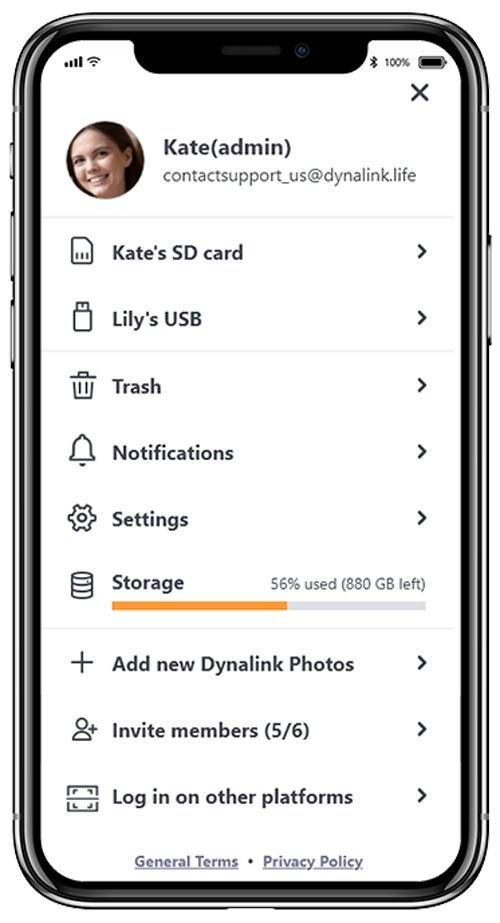
Side Menu
Account Information: your username is your Dynalink Photos account.
- Change profile picture
- Change password
- Verify email
- Manage devices
- Remove users(admin only).
- The first registered account is the admin account. The admin can execute system related functions including factory reset, remove users, and format hard drive. Admin account is not able to view other users’ photos & videos if they are located within a private space.
- The email address for rescuing your password. If the email is not yet verified, the only solution is to reset your account through admin. All your data in private space will be deleted.
External Drives
Shows your plugged in external devices such as an SD card or USB. You can see photos/videos on external devices with Dynalink Photos.
- Shows your plugged in external devices such as an SD card or USB. You can see photos/videos on external devices with Dynalink Photos.
- Support uploading photos/videos in external devices to Dynalink Photos. Do not support uploading to mobile devices.
- Plugging in an external device does not add to the existing storage capacity of Dynalink Photo’s storage.
Trash
Check and restore the photo/video from the trash.
- The trash can occupies up to 3% of total storage. When the trash can is full, it automatically delete the previously deleted files to open up more space.
- Trash can have a shared and private space. To ensure your privacy, your files in the private trash can will not be seen by other users.
Notifications
Notification history
- Display notifications from the past three months, including checking reminders and downloading notifications.
- If the download notification is turned off, the system will not send download notifications when other users add new photos.
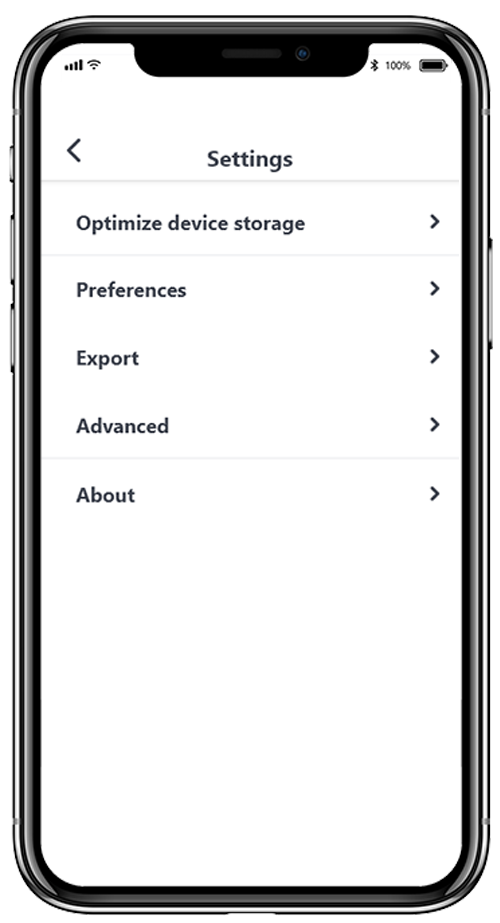
Settings
- Preferences: new album notification, backup notifications.
- Export: export photos/videos.
- Advanced setting(admin only): system update, Network security.
- About: Device name, App version, System version(device), Mac address, IP number.
Storage
Current storage usage in Dynalink Photos. The admin account can see the usage distribution of Dynalink Photos.
Add New Dynalink Photos
Connect to another Dynalink Photos device
- Support two or more Dynalink Photos and connect to one at one time.
- Switch to another device by selecting the name of Dynalink Photos you want to connect to.
Invite Members
To add new members, provide QR code for them to scan and join.
- Share a QR code with your family/friends in located outside your Wi-Fi network, so they can create a new account.
- Anyone who has the QR code will be able to access. Share your QR code with caution.
- One Dynalink Photos can share up to 6 users. Each user can log in up to 5 devices.
- Dynalink Photos can log in up to 10 devices at the same time.
Log In on Other Platforms
Scan QR code on the platform you want to log in to.
- Logging on to Google TV applications generates a QR code. Use this function to scan the QR code for quick login.








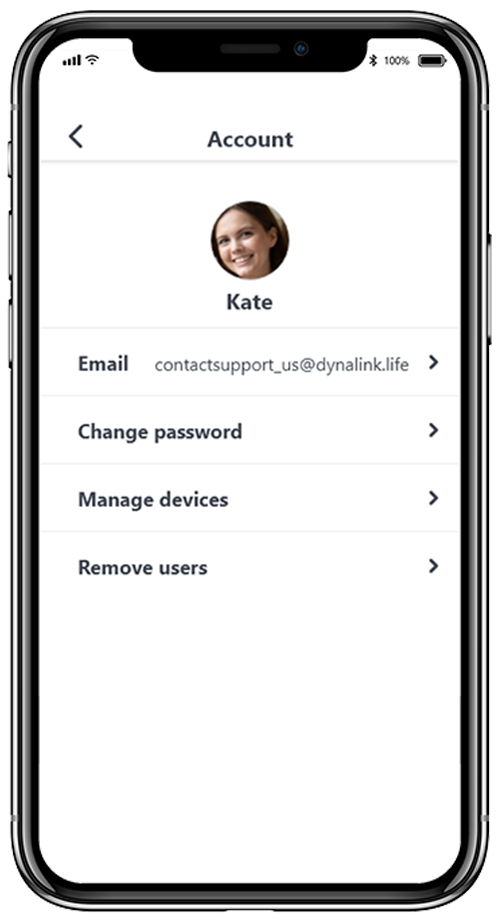
Account
Automatically displays the default profile picture when first logging in.
- Select a photo stored in Dynalink Photos as your profile photo.
Email Address
Enter and verify your email address for rescuing your forgotten password.
Change Password
Reset your password.
Manage Devices
Manage all devices connect to Dynalink Photos.
- The devices list here are able to log in without entering your account and password.
- If you do not recognize the device shown here, please remove it.
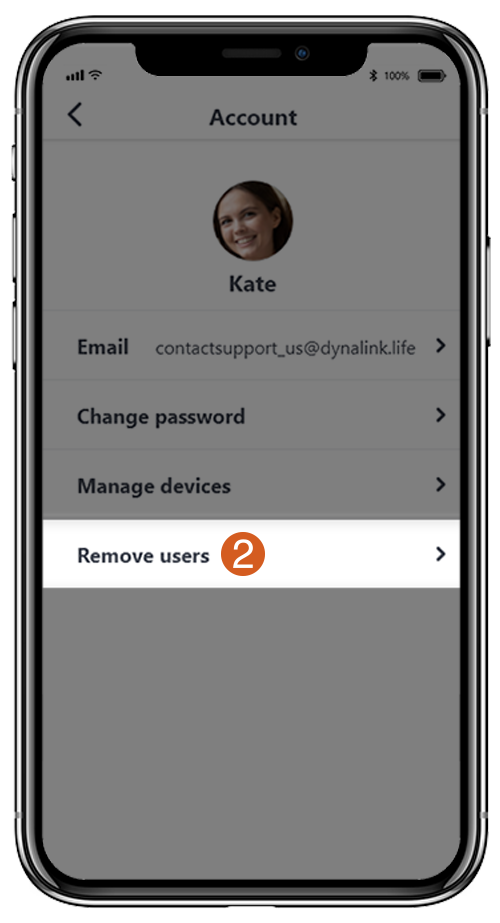
Remove Users(admin only)
Remove the user you don’t recognize. It will permanently delete the files in the removed user’s private space.





Settings
Preferences
New album notification, Backup notifications
Settings
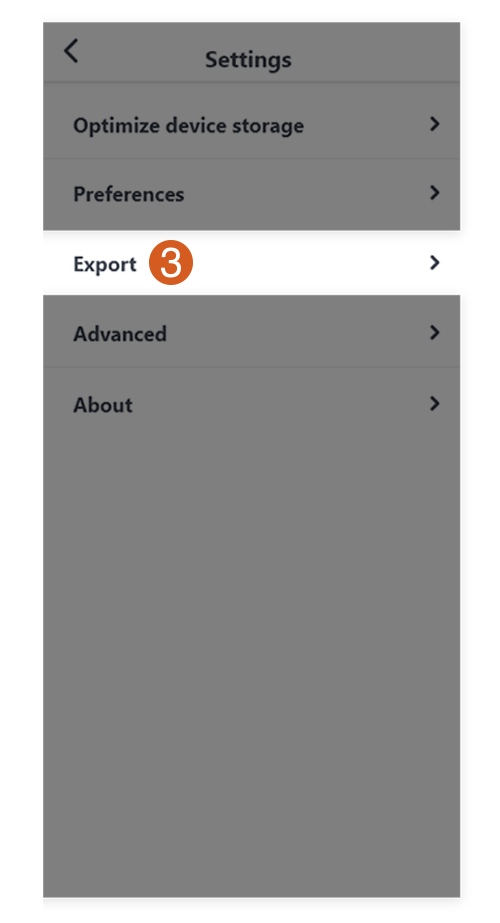
Export
Export Dynalink Photos files to external drives.
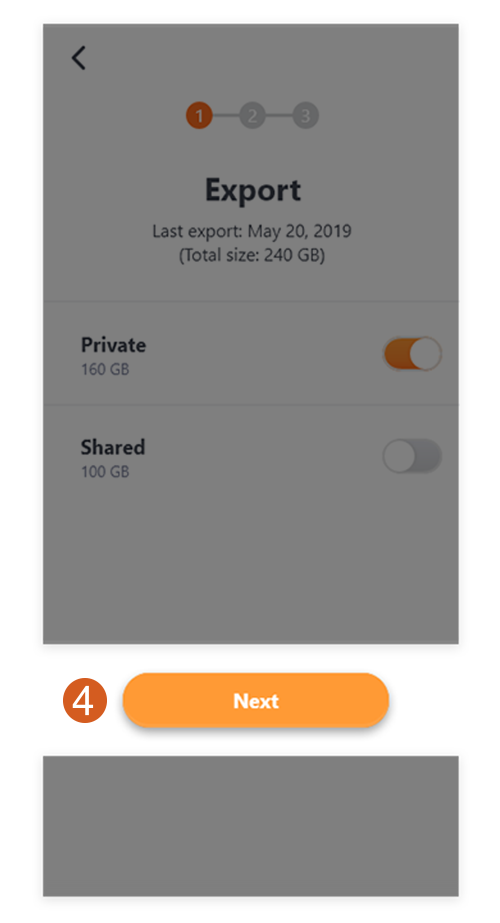
- For offline backup, you are able to export your data files from both private and shared space into the external devices.
- The system will compare the new files with those exported and will only export the new ones added.
Settings
Advanced
Admin only(the firth register):
System update, Network security

Create An Account

1.The Wi-Fi of your mobile devices should be connected to the same router as your Dynalink Photos.

2.Download App: search "Dynalink Photos" on app Store.

3.Open the app and scan the QR code at bottom of Dynalink Photos.

4.Create a username and password.
1.The Wi-Fi of your mobile devices should be connected to the same router as your Dynalink Photos.
2.Download App: search "Dynalink Photos" on app Store.
3.Open the app and scan the QR code at bottom of Dynalink Photos.
4.Create a username and password.
Help Your Family to Create An Account
Create a new account by following the registration process on your family’s phone!
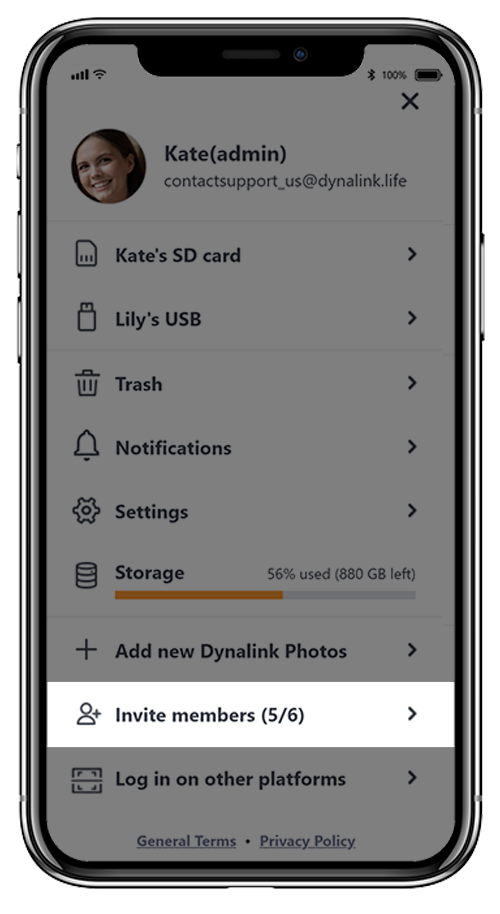

Some tips for people who cannot scan the QR code at the bottom of Dynalink Photos.

1.Download Dynalink Photos app on your family’s phone.
2.Open the app on your phone and click "Invite memebers" in side menu.
3.Share the QR code to your family members.
 Upload/Download Photos
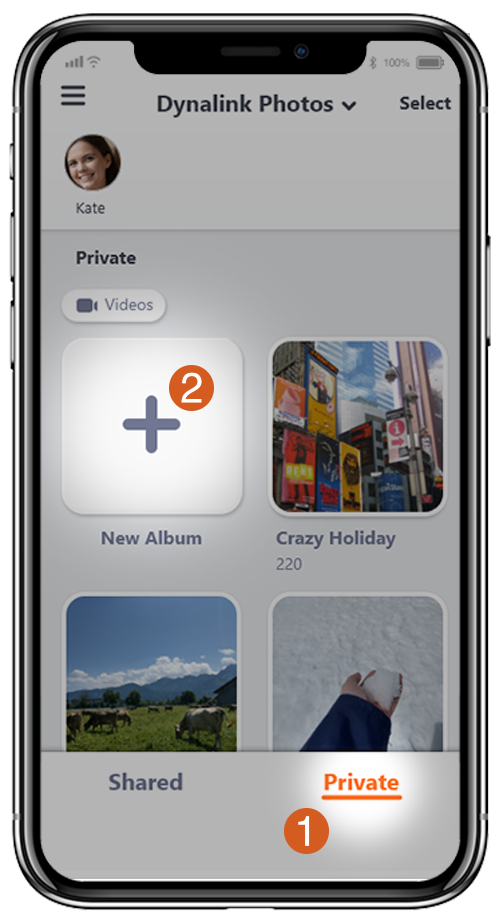
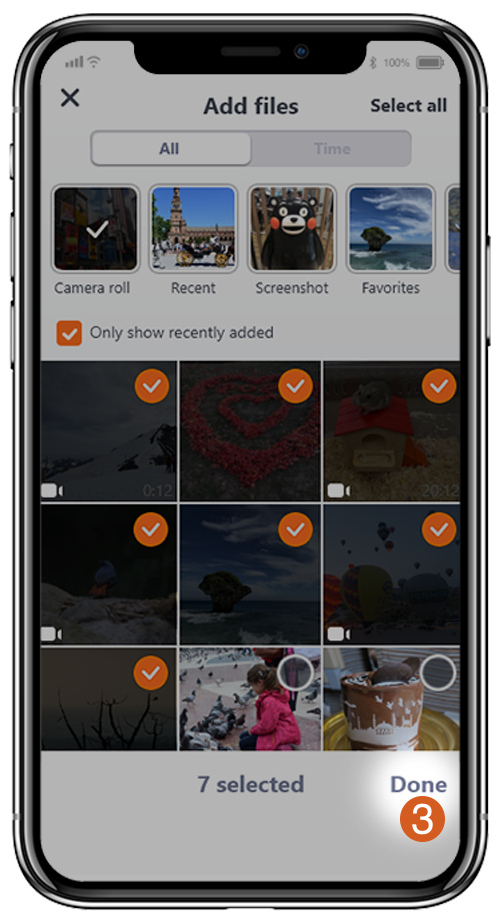

Upload Photos
1Select shared or private tab.
2Click ˹+˼ to create an album.
Suggested naming format: year, month, and then activity
(e.g., 202108 Italy Tour).
2Click ˹+˼ to create an album.Suggested naming format: year, month, and then activity (e.g., 202108 Italy Tour).
3Select photos on your phone and upload.
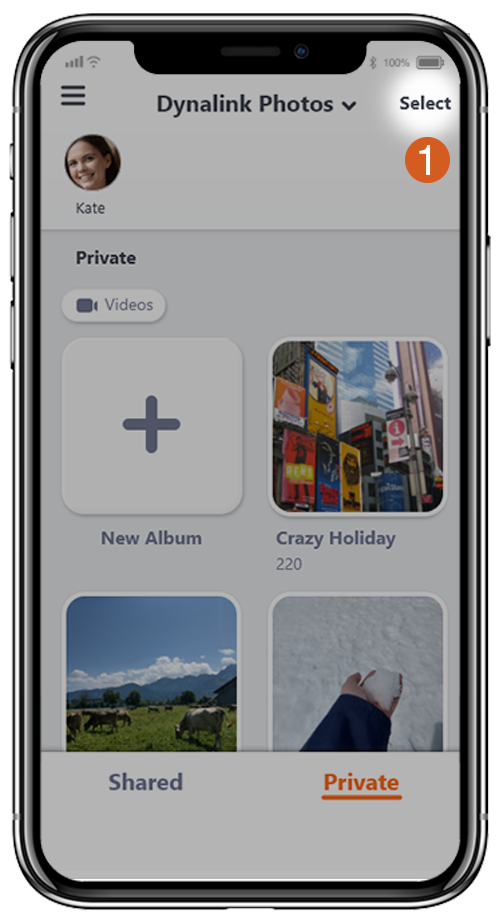

Download Photos
1Click "Select."
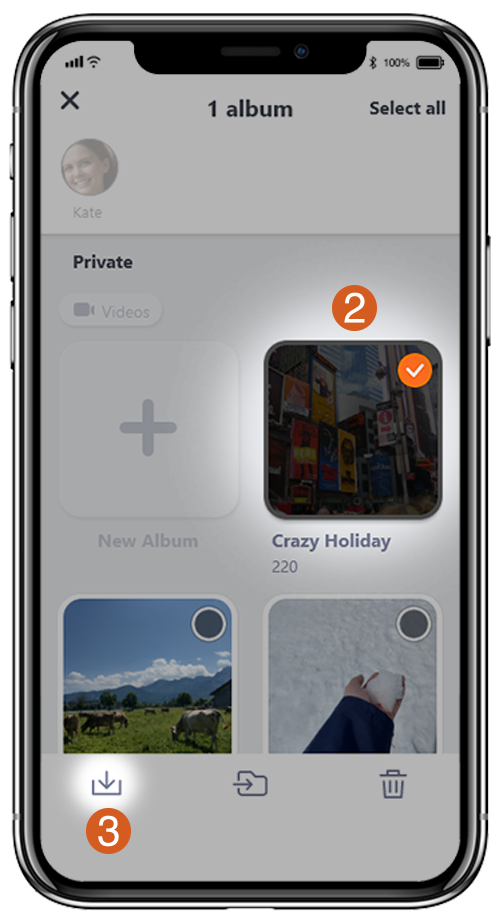
2Select photos and albums you want to download.
3Click download icon.
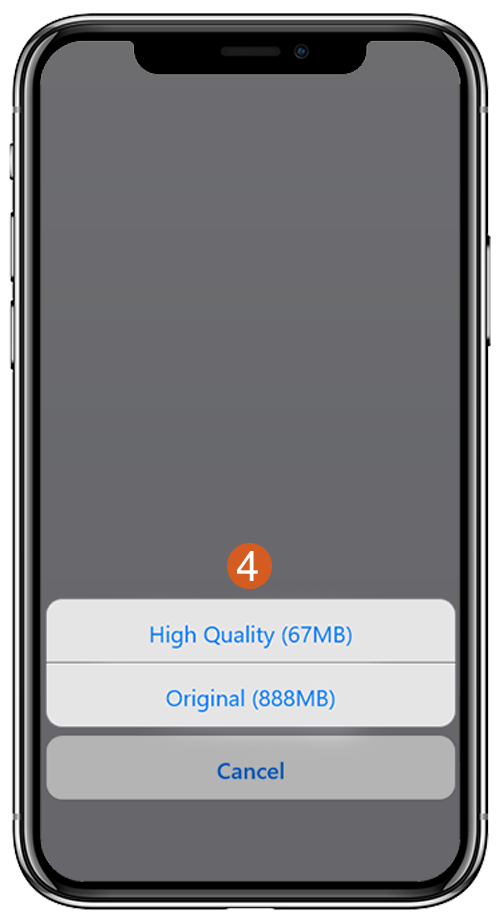
4Select ˹High Quality˼ or ˹Original˼ to download.
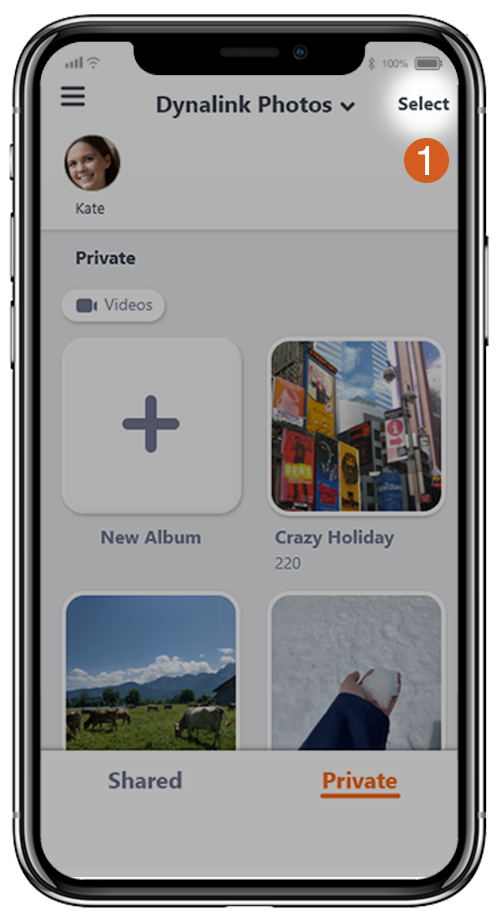
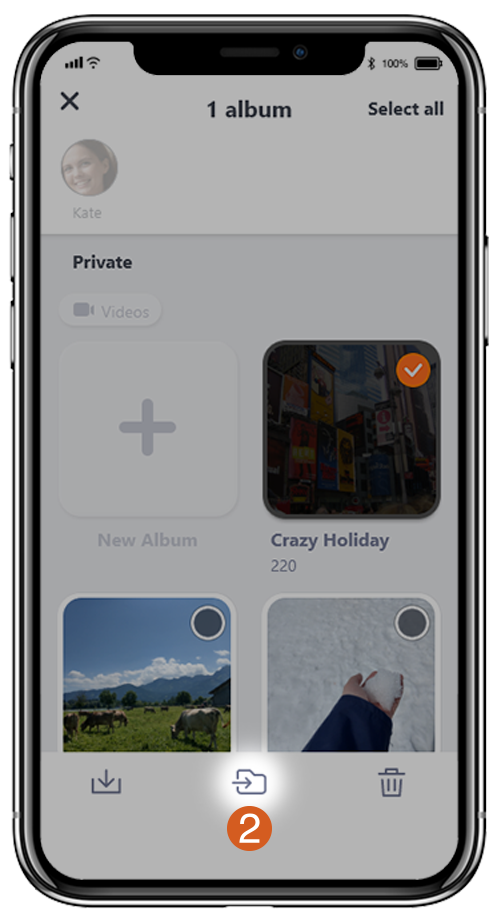
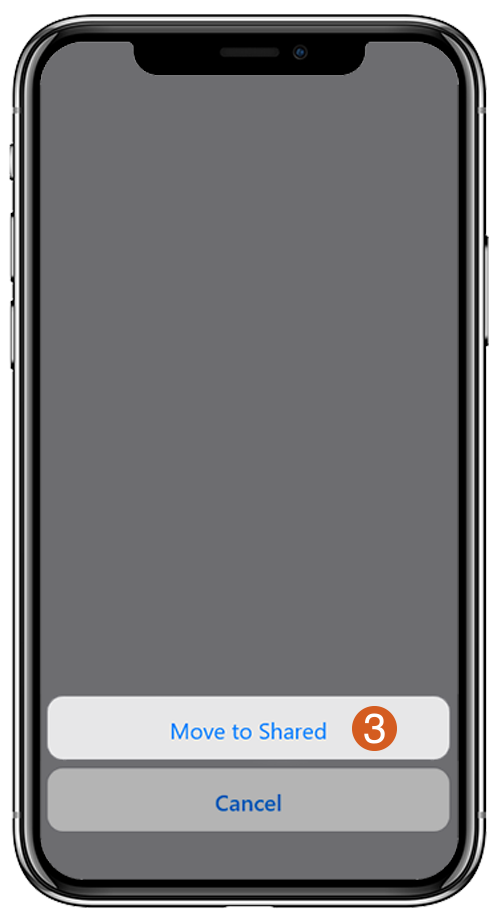

Move Albums
1Click "Select" and choose the album you want to move.
2Click "Move" icon.
3Click "Move to shared space."
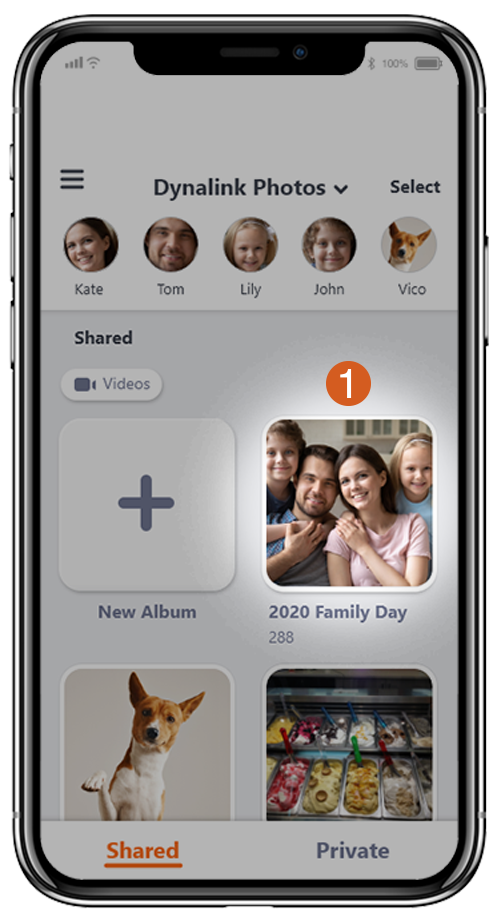
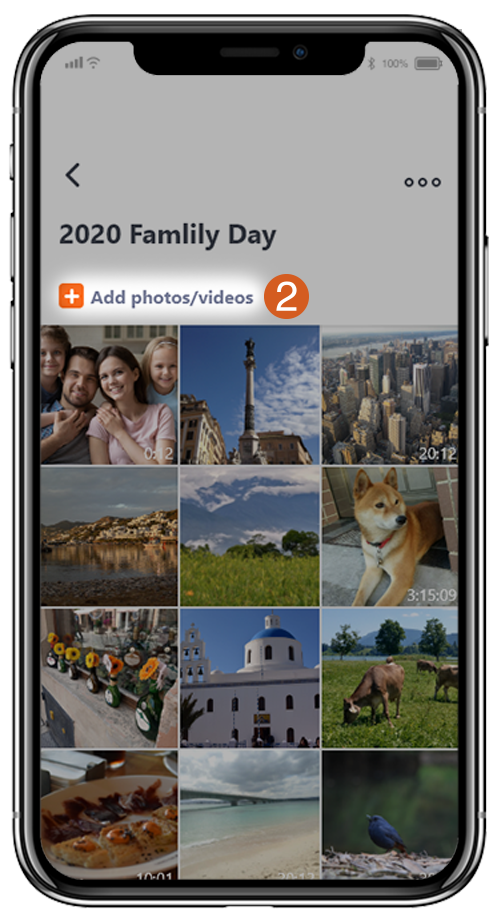
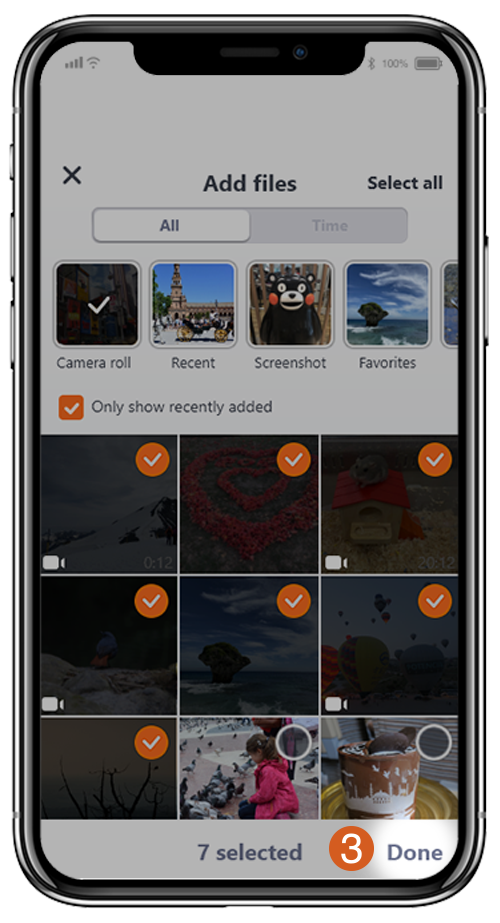

Add Photos
1Click the album you wish to add photos to.
2Click "Add photos/videos."
3Select photos you want to add and click "Done."
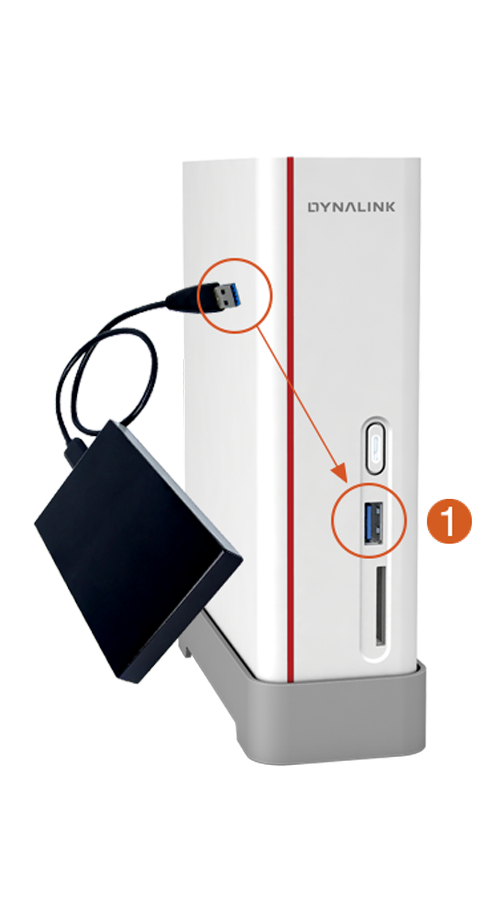
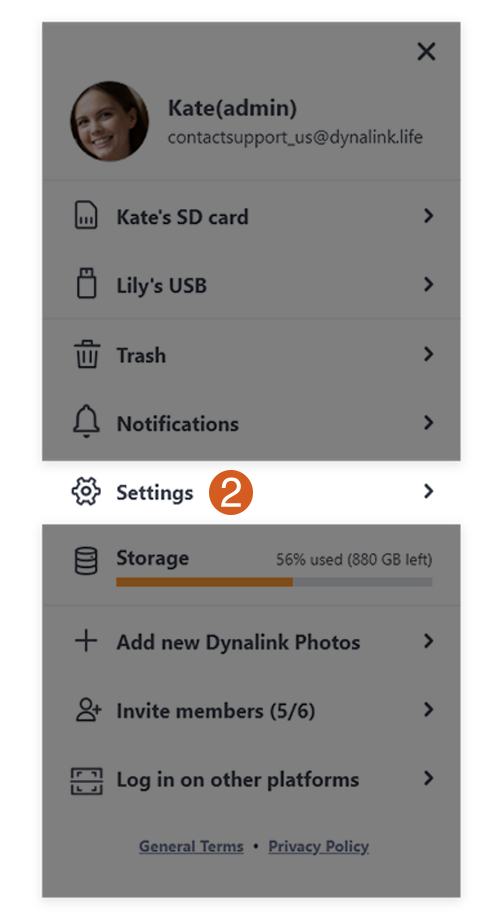
Export
Back up files on Dynalink Photos

1Plug in the USB drive.
2Click "Settings" in the side menu.
3Click "Export."
4Select the storage space you want to back up and click "Next" to start exporting.
 Connect to an external drive. The system compares the new files with those exported and will only export the new ones added.
The export time is based on the size of the files. You can leave the app after starting export.
Remove Other Users
To manage Dynalink Photos, the admin can remove unrecognizable accounts, or accounts that are no longer in use. This function will also delete all the files in the removed user’s private tab.
To manage Dynalink Photos, the admin can remove unrecognizable accounts, or accounts that are no longer in use. This function will also delete all the files in the removed user’s private tab.
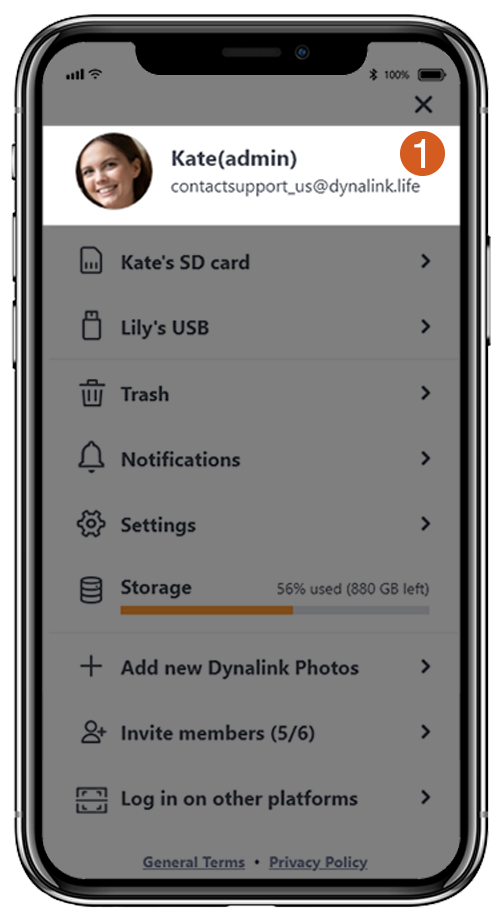
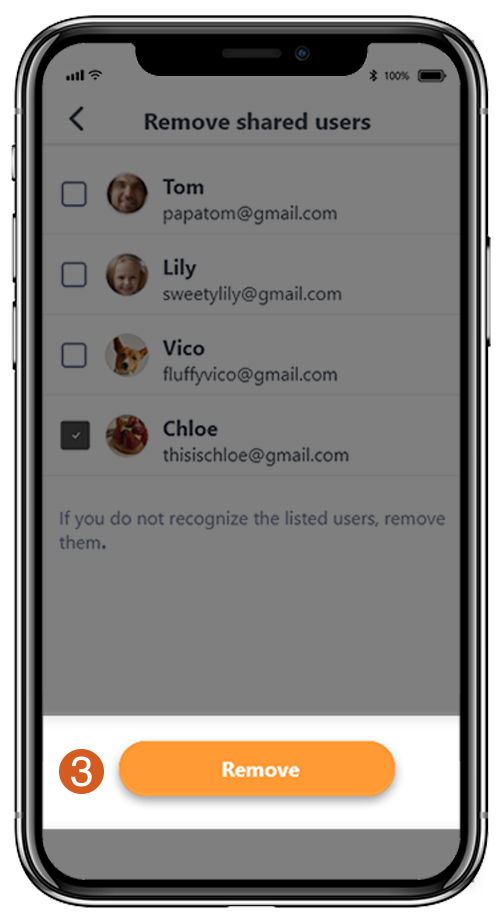

1Click your account in the side menu
2Click "Remove users."
3Select the account you want to remove and click "Remove."