


TV
Google TV
 Software Introduction for Google TV
 Download for Google TV Dynalink Photos apk
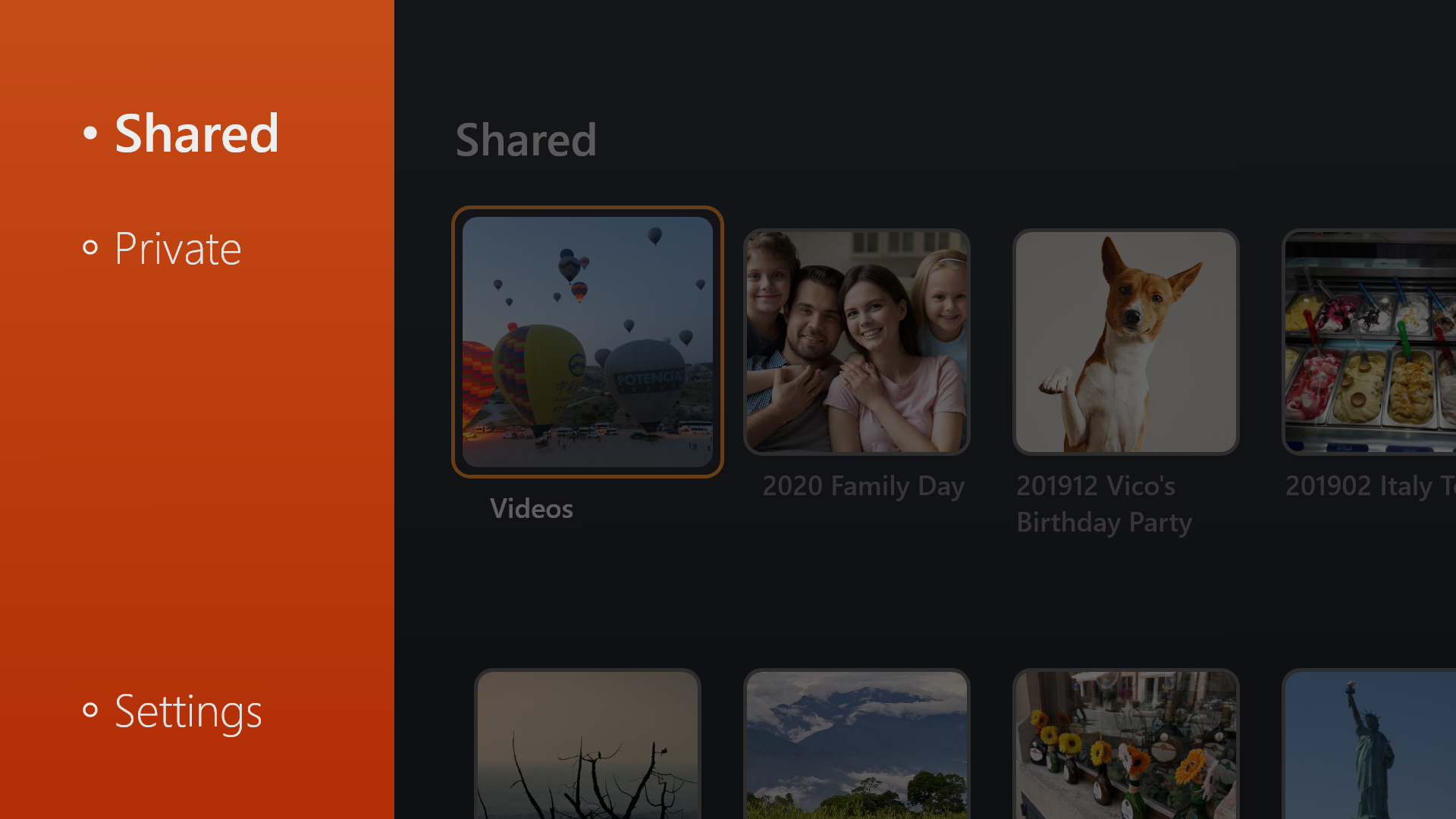

Share Your Photos and Videos on Google TV with Dynalink Photos
1Search and download the "Dynalink Photos" app on Google TV Store.
2The network connection of Google TV should be connected to the same router as your Dynalink Photos. The software will connect to Dynalink Photos device automatically.
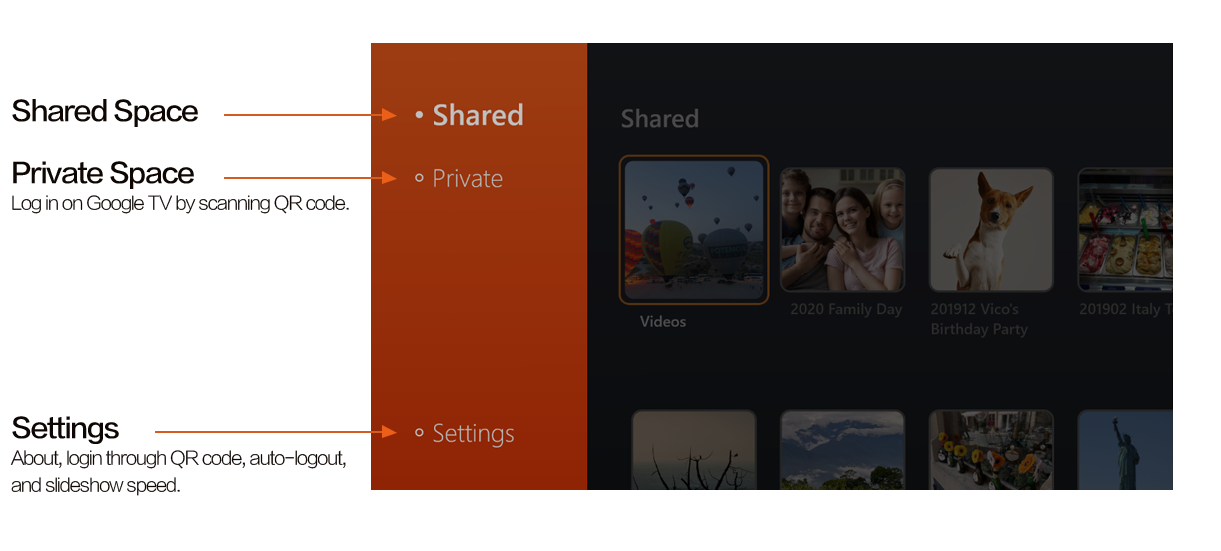
 View the photos in a shared space. Logging in is not required.
Directly log in to your account and view photos in your private space through scanning QR code.


How to Log In on Google TV
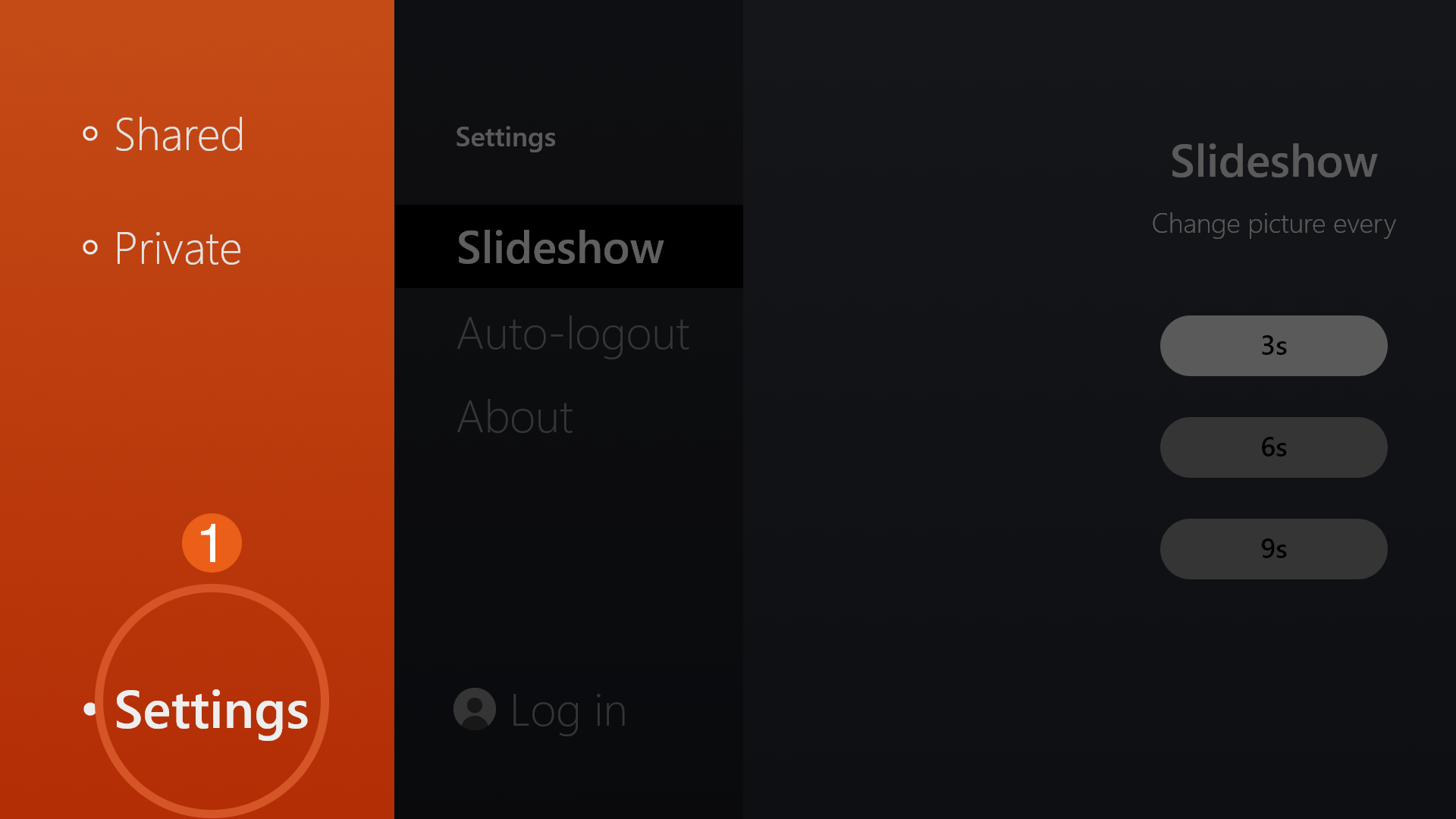
1Click "Settings"
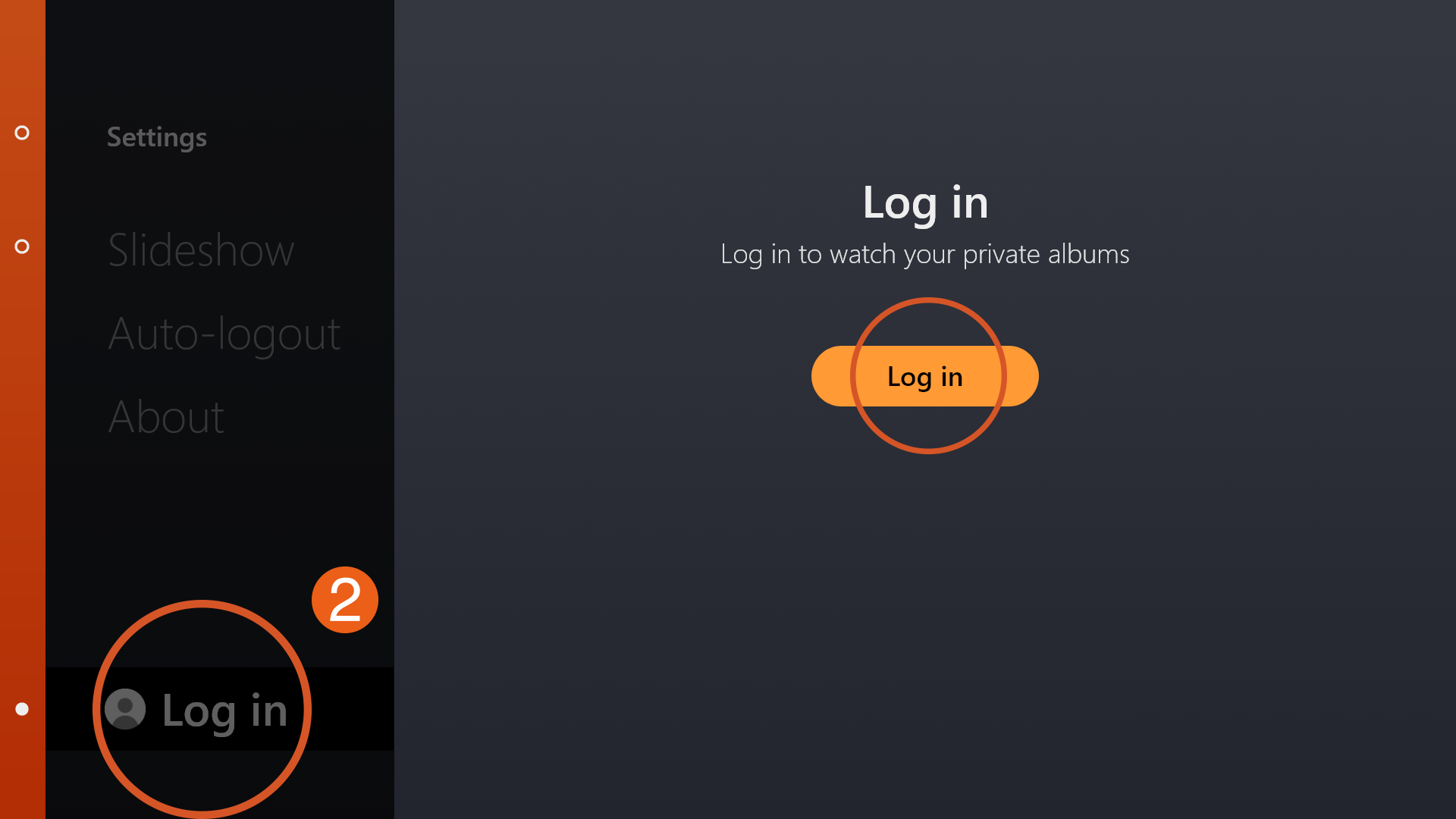
2Click "Log in"
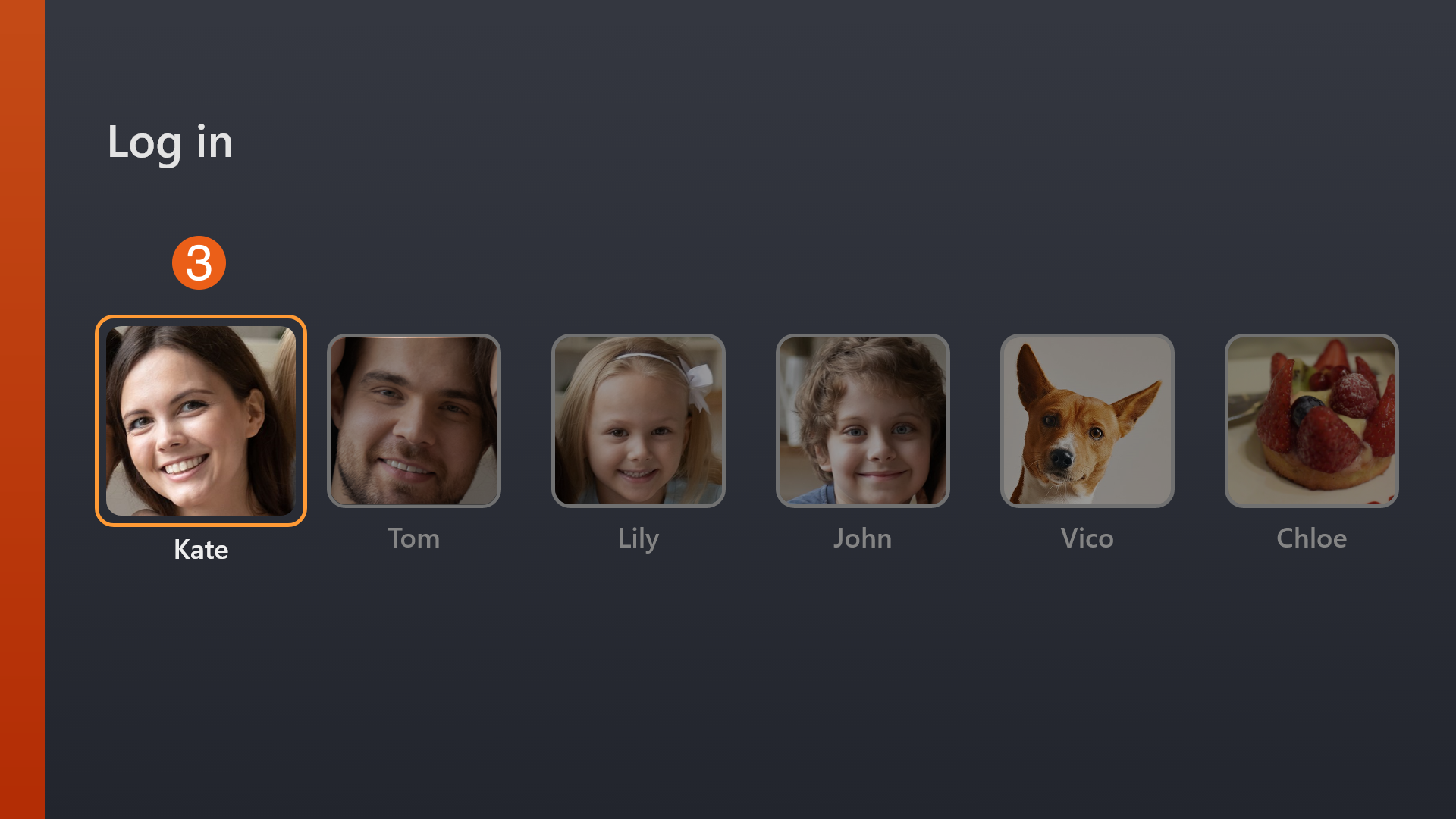
3Select the account you want to log in to
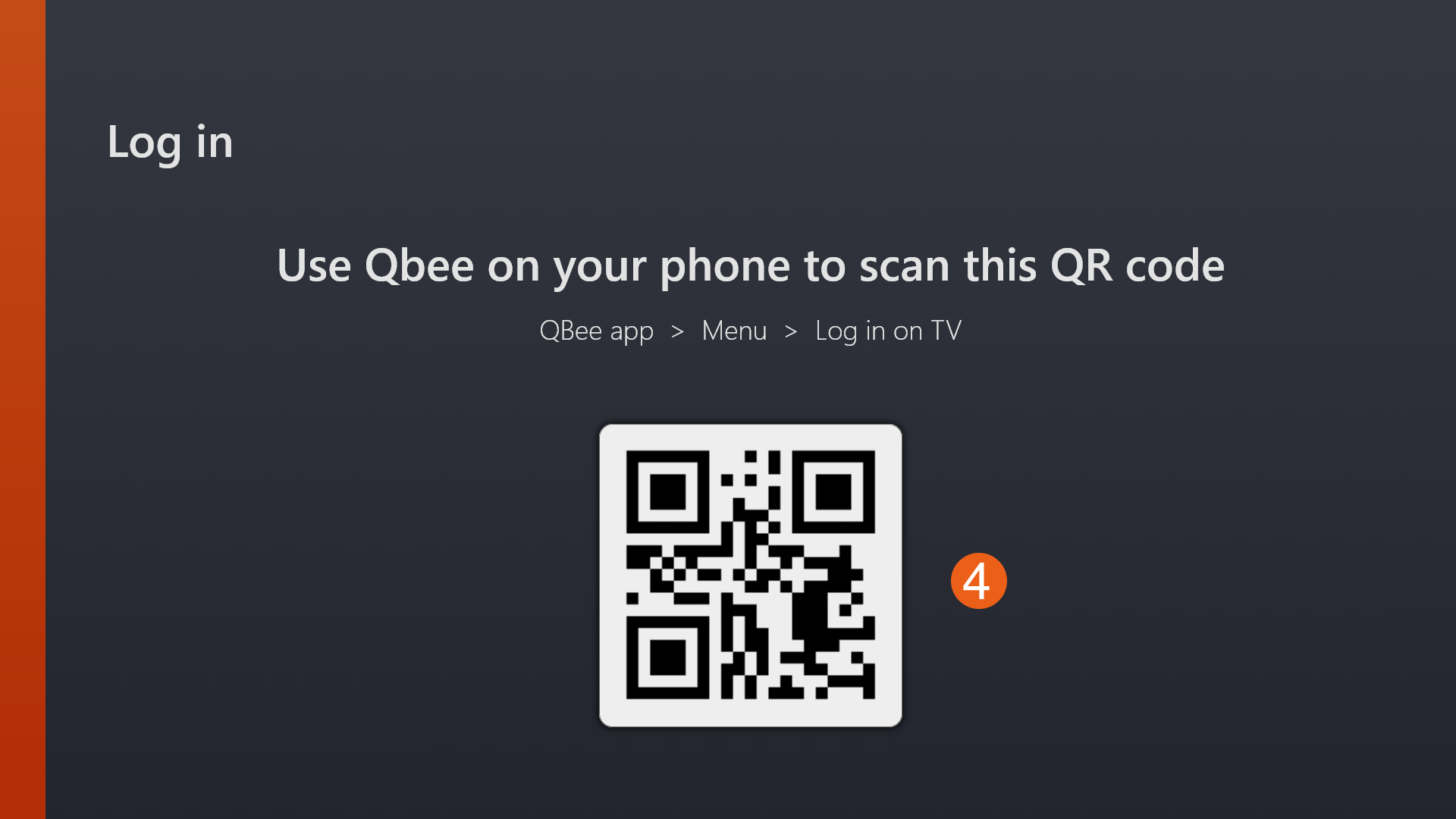
4Generates a QR code
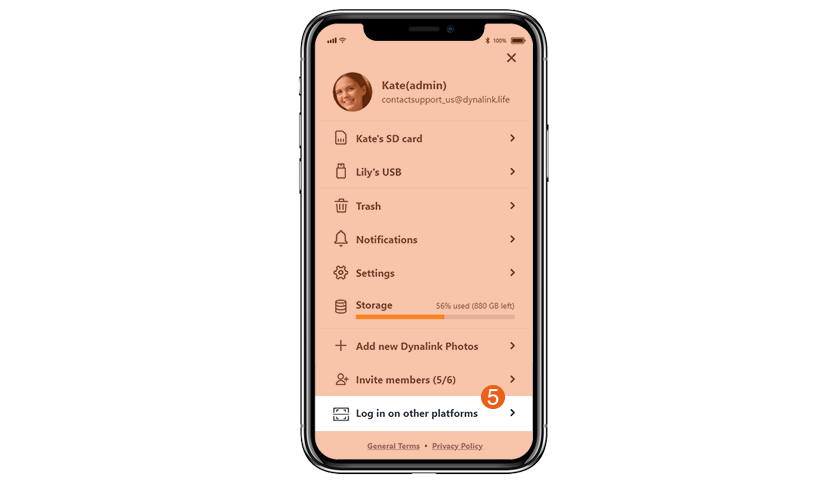
5Open the Dynalink Photos app on your phone and click "Log in on other platforms"
6Log in directly through QR code
Settings and Slideshow Introduction
AutoPlay Your Photos
Play all albums
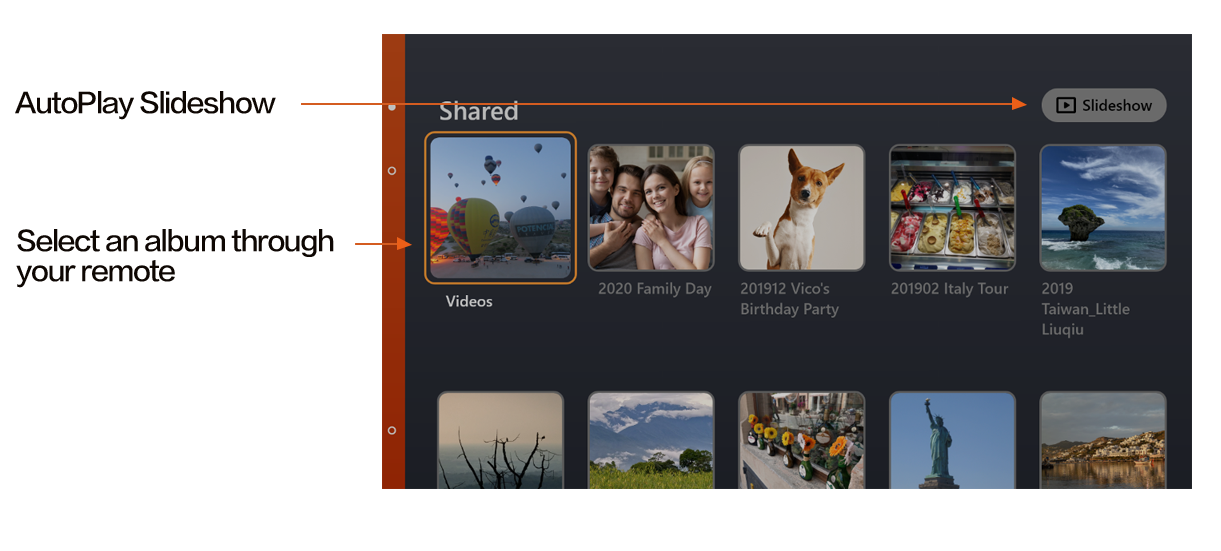
Click "Slideshow" on home page. Slideshow will start playing from the first photos in the first photo within the top album and continue in descending order all the way to the last album.
Select the albums
Select the albums you want to play and click "Slideshow." The slideshow will start playing from the first photos and stop after playing through your entire album selections.
Slideshow Speed
Click "Settings" and set the speed you want to. Dynalink Photos can set the speed for each slide up to 3, 6, and 9 seconds.
Auto-logout
Your account will be automatically logged out after you leave the software. You can adjust this setting by selecting "Settings" > "Auto-logout."
AutoPlay Your Photos
Play all albums
Click "Slideshow"
on home page. Slideshow will start playing from the first photos in the first photo within the top album and continue in descending order all the way to the last album.
Select the albums
Select the albums you want to play and click "Slideshow."
The slideshow will start playing from the first photos and stop after playing through your entire album selections.
Slideshow Speed
Click "Settings" and set the speed you want to.
Dynalink Photos can set the speed for each slide up to 3, 6, and 9 seconds.
Auto-logout
Your account will be automatically logged out after you leave the software.
You can adjust this setting by selecting "Settings" > "Auto-logout."